Help Center

Frequently Asked Questions

Everything you need to know about getting connected with NovaSIM.

How to check whether your phone is eSIM compatible?

Open your phone app, type *#06# and press Call. A "Device Information" screen will appear. If you can see an "EID" number listed (as shown in the image below), your phone supports eSIM and is compatible. If there is no EID shown, your phone does not support eSIM.
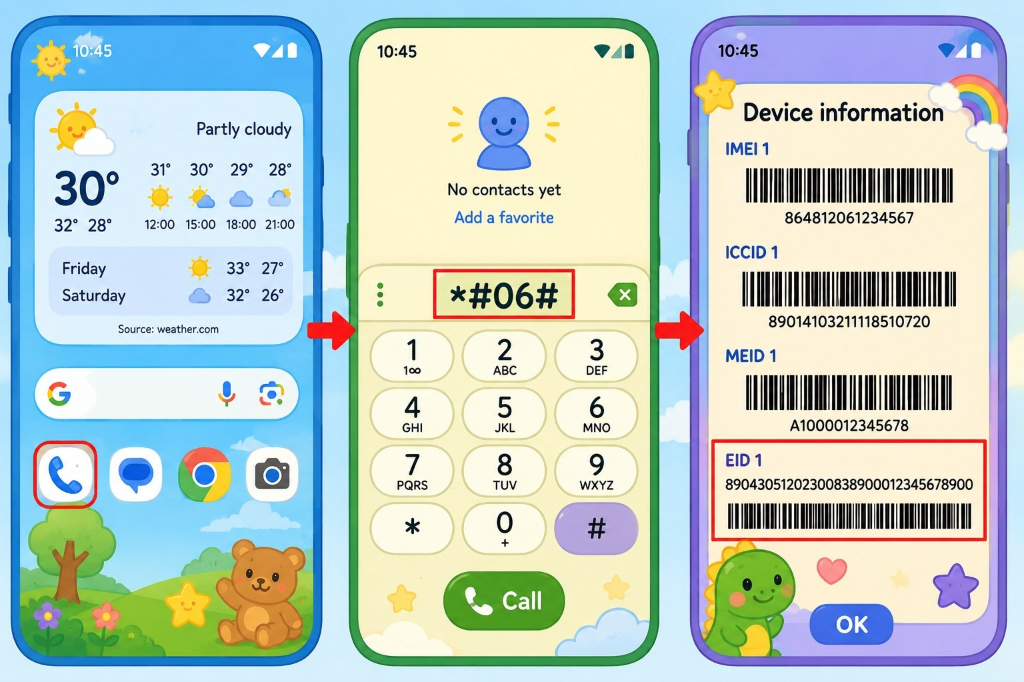
eSIM compatibility check – dial *#06# and look for EID

What is ESIM, How to activate the eSim?

On successful purchase of eSim you will receive a QR code on your email address provided at the time of booking, you need to scan the QR code to install the eSim on to your phone. Please do check if your phone is compatible for esim from list of compatible device for apple phones, android or other phones.

What is the validity of the plan?

Depending upon the plan you buy, the validity will come accordingly.

Which countries are covered?

List of countries covered are mentioned as part of the plan that you buy.

Should I buy my eSim before travelling or when I arrive?

You can do it either ways.

Can I use the same eSim in different devices?

Once an eSim is installed in one device you can't reinstall it in another device.

How long will it take for delivery?

Most of the time it will take 30 mins. But our timing is 3 hours max. If you don't receive within 3 hours max, you will receive 10% refund on your wallet.

How to set up eSIM on iPhone?

Setting up your eSIM on iPhone is simple: 1. Go to Settings → Cellular (or Mobile Data). 2. Tap "Add eSIM" or "Add Cellular Plan". 3. Select "Use QR Code" and scan the QR code sent to your email. 4. Follow the on-screen prompts to complete the installation. 5. Once installed, label the plan (e.g., "Travel Data") so you can easily identify it. 6. Make sure the plan is set as your active data plan before you travel. Compatible iPhones: iPhone XS, XR, and all newer models. Your iPhone must be carrier-unlocked.

How to set up eSIM on Android?

The steps vary slightly by manufacturer, but the process is generally the same: Samsung Galaxy: 1. Go to Settings → Connections → SIM Manager. 2. Tap "Add eSIM" and scan the QR code from your email. Google Pixel: 1. Go to Settings → Network & Internet → SIMs. 2. Tap the "+" button and scan the QR code from your email. Other Android phones: 1. Go to Settings → Mobile Network (or SIM & Network). 2. Look for "Add eSIM" or "Download SIM" and scan the QR code. After installing, ensure the eSIM is selected as your active data SIM in your SIM settings. Your phone must be Android 9 or above and carrier-unlocked.

How long does it take to set up the eSIM?

Once you receive the QR code in your email, the actual setup takes less than 2 minutes. Simply follow the steps for your device (iPhone or Android above), scan the QR code, and your eSIM will be installed and ready to use. The QR code scan and profile download takes around 30–60 seconds depending on your internet connection.

Do I need to turn on Data Roaming?

Yes! Data Roaming must be enabled for your NovaSIM eSIM to work abroad. Here is how to turn it on: iPhone: 1. Go to Settings → Cellular (or Mobile Data). 2. Tap your NovaSIM plan (the one you just installed). 3. Toggle "Data Roaming" to ON. Android (Samsung): 1. Go to Settings → Connections → Mobile Networks. 2. Select your NovaSIM SIM. 3. Toggle "Data Roaming" to ON. Android (Other): 1. Go to Settings → Mobile Network. 2. Tap your NovaSIM plan. 3. Enable "Roaming" or "Data Roaming". Note: Do NOT worry — enabling roaming on your NovaSIM eSIM will NOT cause surprise charges. Roaming fees only apply to your main SIM card, not your NovaSIM data plan, which is already priced for international use.

Still have questions?

Our support team operates 18 hours daily to assist you with any inquiries.

Contact Support